Showing posts with label tutorials. Show all posts

Wednesday, June 19, 2013

HOW TO CREATE QR CODES FOR YOUR PRODUCTS

WHAT ARE QR CODES

QR code is the abbreviation for Quick Response Code invented in 1994 by Denso Wave for tracking vehicles during manufacture; it was first designed to allow high-speed component scanning and It by far one of the most popular types of two-dimensional barcodes. It is attached to a product or an item and can be optically read by a QR scanner or software that displays informations contained on that product or item. These information encoded in a QR code may contain four types ("modes") of Standardize data through supported extensions and reads virtually any type of data it contains. they may include numerals, alphanumeric characters, byte or binary, Kanji e.t.c

A pictorial view of a QR code consists of black square dots aligned on a square grid normally on a white background which is readable via an optical device such as a camera or scanner. it is processed interpreted appropiately by a device or smartphone until the data contained in the scanned photo is then extracted from patterns present in both horizontal and vertical components of the image.

HOW DO I GET A QR CODE?

Now, you may ask "How do I get a QR code for my product or item? ". There are many services out there that generates Links to Qr Codes for free E.g. appspot.com and Keywa.com. This is normally know as Hard linking or Object Hyperlinking

USES OF A QR CODE

Like I said earlier, QR codes were made for tracking vehicles during manufacture. Today, QR codes have now become a common tool used in various consumer advertising. Standard websites and products owners now give out sparingly enough QR codes of their product to the general audience. some QR codes may contain URL links that takes you to the product's web page for further information using ur smartphone or a scanner attached to your computer

IT IS USED FOR STORING AND ENCODING WEB ADDRESSES

It is very common to see advertisers place QR Codes on banners, magazines, photos, newspapers, and even on streetwalls. Incase you have been seeing them and you're are wondering what it is, then grab your smarphone or tablet and take a shot of it with a QR Code Scanner to see what information it exactly contain. What you might see may take you to a web page where all the information on the displayed QR code code contain.

IT IS USED FOR TRACKING GEO LOCATIONS OF ITEMS

QR codes also may be used to track the location where a code has been scanned. It can be retrieved in dual ways it is either the app or software used as the QR code Scanner retrieves the Geographical information by using GPS and cell tower triangulation (aGPS) or a URL or meta data encoded in the QR code itself is associated with a location

Google has a popular API to generate QR codes , and apps for scanning QR codes can be found on nearly all smartphone devices.

USED BY ONLINE VIRTUAL STORES OWNERS

Since the mid of last 2 years ( since 2011 ), according to one study, 14 million mobile users were accounted to have scanned a QR code or a barcode. it was also given that 60% of these users scanned a QR or barcode from their homes, while the rest 40% scanned from retail stores; Further statics accounts for 53% of the 14 million users were said to be men between the ages of 18 and 35. The South Koreans were known to be the first to use QR Codes for Virtual Store purpose, and beginning to gain massive users globally.

QR CODES ARE USED FOR PAYMENTS

Bank details such as credit card information, bank account information, pins and pass phrases are encoded in QR codes to ease payment of goods and carry out other financial transactions. Today there are thousands of site that offer products and services using scanned bar codes and QR codes

LOGIN TO WEB PORTALS

QR codes can be used to log in into websites and web portals for unrestricted access. The user is normally prompted to scan the QR Code as it's shown on the login page on a computer screen with a verified smartphone. By doing so they are automatically logged in on the computer. Authentication is performed by the smartphone which contacts the site's server. A QR code login method called "Sesame"zzzz. This method of user authentication was first trialled by Google in January 2012.

THEY ARE USED FOR ENCRYPTION AND CONCEALING INFORMATION

Although they may not be boundless in use but have been used in few implementation. Encrypted QR codes, which are not very common, have a few implementations. An Android app, for example, manages encryption and decryption of QR codes using the DES algorithm (56 bits).

WHAT ARE THE RISK OF USING QR CODES?

The risk of Using QR CODES may tend to harm users as certain malicious links and Items may be encoded into QR codes. This is normally known as "attagging", a portmanteau of "attack tagging". In this Case I would advice you scan QR codes from trusted people and organizations. They are easily created and can be affixed over legitimate QR codes

linking to malicious sites with browser exploits, enabling the microphone/camera/GPS e.tc., streaming feeds from your device to a remote server, analysing your sensitive data such as passwords, contacts and all transactions made by you, and sending unsolicited emails/SMS/IM messages or DDOS packets as part of a botnet on your behalf, tempering with your privacy settings, stealing your identity, malicious JavaScript and virus. These actions could occur in the background without your consent while you are going about your normal daily web surfing. Cases Have been reported In Russia Where malicious QR code scanned with smartphones ended up sending premium texts at a fee of US$6 each.

My advice is that you should be careful of the Codes you scan.


IF you find this Post Helpful, then Help Us click the Like Button. Thanks

Monday, June 17, 2013

HOW TO KNOW THE SENDER'S LOCATION OF THE EMAILS YOU GET


On daily bases, millions of spam messages are being sent over the internet so much so that it could be possible one just entered your inbox while reading this post. The Next thing that comes to mind is knowing "who is actually the sender". Sometimes these emails are being sent anonymously over the web while others are sent through the senders original IP address. The mails you receive as spam sometimes does not fully decipher the sender but actually carries few information on who the Sender really is or the IP address of the sender.

How to Find Sender's IP address in Hotmail
1. Log into your Hotmail account with your username and password.
2. Click on the Mail tab on the top.
3. Open the mail.
4. If you do not see the headers above the mail message, your headers are not displayed. To display the headers,
* Click on Options on the top-right corner
* In the Mail Options page, click on Mail Display Settings
* In Message Headers, make sure Advanced option is checked
* Click on Ok button
* Go back to the mails and open that mail.


5. If you find a header with X-Originating-IP: followed by an IP address, that's the sender's IP address Hotmail headers : name ,In this case the IP address of the sender is [68.34.60.59]. Jump to step 9. 6. If you find a header with Received: from followed by a Gmail proxy like thisHotmail headers : nameLook for Received: from followed by IP address within square brackets[].In this case, the IP address of the sender is [69.140.7.58]. Jump to step 9. 7. Or else if you have headers like thisHotmail headers : nameLook for Received: from followed by IP address within square brackets[].In this case, the IP address of the sender is [61.83.145.129] (Spam mail). Jump to step 9. 8. * If you have multiple Received: from headers, eliminate the ones that have proxy.anyknownserver.com.9. Track the IP address of the sender

HOW TO FIND THE SENDERS THROUGH IP ADDRESS IN MESSAGE HEADER IN GMAIL


How to find the IP address of the sender in Gmail: When you receive an email, you receive more than just the message. The email comes with headers that carry important information that can tell where the email was sent from and possibly who sent it. For that, you would need to find the IP address of the sender. The tutorial below can help you find the IP address of the sender. Note that this will not work if the sender uses anonymous proxy servers.

Finding IP address in Gmail:
1.Log into your Gmail account with your email address and password.
2. Go to your inbox and open a mail.
3. To show the email headers, Click on More options on that mail thread. You should get a massive bunch of links displayed. Click on Show original.

4. Next you would get headers like this:Gmail headers : nameLook for Received: from followed by a few hostnames and an IP address between square brackets. In this case, it is65.119.112.245.That should be the IP address of the sender!
5. Track the IP address of the sender. by going to site like whatismyipaddress.com


You May also Like:
  • HOW TO CHANGE YOUR IP ADDRESS ON FIREFOX
  • HOW TO CHANGE YOUR IP ADDRESS ON GOOGLE CHROME WITHOUT ANY SOFTWARE
  • Wednesday, June 12, 2013

    HOW TO INSTALL BLACKBERRY THEMES WITH DESKTOP MANAGER

    Instructions for Installing BlackBerry Themes Manually

    Installing a just downloaded theme to your blackberry device manually with Blackberry Desktop Manager may not be as easy as installing the theme from a .jad file straight from the internet( Over The Air (OTA)method ).

    I will be walking you through the stages involve in doing this with just less than 7 steps. All you have to do is download the Zip file or folder containing the theme, either from blackberry world or http://www.umnet.com/download-theme and follow the rest instruction.

    First As a blackberry user I want to assume you already have a blackberry Desktop manager installed on your PC. or you can download a copy for the sake of this brief tutorial.

    1. You can now launch your Blackberry Desktop Manager Software with your blackberry device connceted Via UsB
    2. On the main Menu click the application Loader tab to get started.


    3. The next screen that comes up will show you the ADD/REMOVE APPLICATION area, proceed by clicking the start button. This is because your blackberry regards all themes as app and will install them on command


    4. On clicking the start button, the desktop manager prompts you to select location for the theme you want to install. You should note that the zip folder must be extracted, and the location of the .alx or .ali is where you will navigate to when you click the BROWSE button.


    5. Is now left for your BB DesKtop Manager to run and check for the validity of the chosen file and make it available on the
      Device Application Selection as shown in the picture above
    6. Select the themes you would like to install from the list shown. Did you notice the Action column? Make sure you check for install as the action to take before proceeding to the next step. To proceed to the next step. Do click Next Button.
    7. Remember I told you, Blackberry Recognizes themes as Apps. After clicking next the message that reads on the next screen will read:


      The following applications will be added or updated on your device.

    8. Click the FINISH BUTTON to start Theme installation immediately. At this point you should not disconnect or do any thing to interrupt the task in progress.
    9. After that you will get a message that will tell you whether it was successful or not. If you followed the steps above carefully then sure it you will get this message:
      The loading operation was successful

    Now you are done and go for the theme on your device and select your newly installed theme.


    You May Also Like:

  • How to Use your Blackberry As a MODEM
  • How to Create and customize a Blackberry theme
  • cheers!!!

    Saturday, June 8, 2013

    IF YOU HAVE AN EMAIL ADDRESS THEN READ THIS

    INTRODUCTION

    If you have an email address and you really want those spam messages to stay clear off your inbox, then you have to read this. Almost like everyday, most internet users gets chunks of spam messages being delivered into their inbox without their consent. And they are left with the question "how did this [***SPAMMER***] get my email address ?". How the sender got your email may not be issue but how often you keep exposing your email address and he/she keeps sending you that annoying crap or story line always. But sometime it is more easier to blame it on yourself due to carelessness on our own part ( I mean no offense). By doing so, you leave SPAM BOTS and spammers who uses Email Extractors to have quick access to your Email address.

    That's why I don't buy the Idea of you Leaving your e-mail address on my blog (...you will be doing so at your own risk). Instead I see no wrong making use of the comment box below if ever you want to be heard or pass across any information for users and visitors of this blog.
    If you really want to stop receiving those Spam messages (unwanted messages), then you must harken to the rest instructions and steps listed below in this post

    To stop receiving spam Emails on Yahoo! Mail. Log on to Yahoo! Mail on your DESKTOPand place search out the spam email. (likely to be in your spam folder)

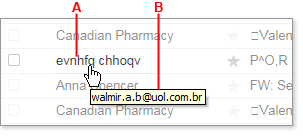
    Place the cursor over the sender's name in your mail folder. The real email address should appear in a tool tip.

    From the Image below, you can see, the labellings A and B


    A. carries the sender's name while B. tells you the real email address of the sender. ( Take Note)

    Wait a minute I think I should make something clear here before we continue You may still get the same type of spam messages timelessly even if you end up blocking the sender with the below steps. Some spammers are very crafty and uses different names with the same domain, such as xpangoxc.a.b@vbi.com.hk and mssoretk.c.b@vbi.com.hk.
    In this case, you are to block the domain and not a specific email address or even the both. For instance, from the illustration above, you're to block the uol.com.br. domain name. If you must also know, on the other hand some spammers are not predictable in how they create their addresses, as such my suggestion concerning blocking the both may not guarantee you to stop receiving spam messages completely. although it might reduce the messages from Spammers.

    Click the gear icon (Gear Icon) in the upper-right corner of the window, and select Mail Options from the menu that appears. (In Mail Classic, select Options | Mail Options.)
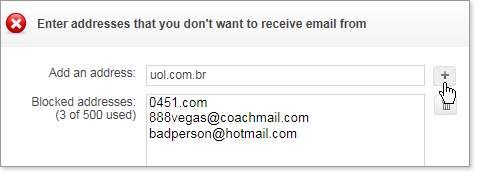
    On the left pane of the Options page, click Blocked Addresses (in Mail Classic, click Spam). In the Add an address box (in Mail Classic, Add a Blocked address), type the email address or domain of the Spammer that you want to block forever.
    Click the "+" button to the right of the box (in Mail Classic, click Add).

    Block address

    The address or domain is added to your list of blocked addresses, and you should no longer receive email from that address. You can use this method to block up to 500 email addresses and domains from different senders. You are also able to see how many you've blocked on the left side of the list, for example, "3 of 500 used." Please note that in cases where the spammer uses a Yahoo Id, Only the Email address should be blocked Not the Domain Name. Blocking the domain can stop you from receiving emails from other Users with yahoo ID

    To Ublock Address


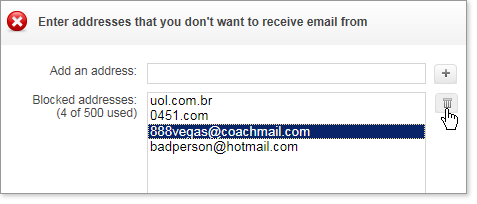
    To Unlock any Email address, Simply select the email address you want to remove from the list and click the Trash Can Icon as shown above, to remove the address from your block List.

    THATZ ALL

    Tuesday, May 14, 2013

    TROUBLESHOOT NO GATEWAY REPLY ON YOUR NOKIA

    Have you been trying to connect to the internet through a WLAN network and all you get is a fustrating "No Gate way" reply? Well i think I have some goodies for you.

    Just try the following solutions given below to trouble shoot all that crap and get connected. Sure these will make things okay.


    ADD YOUR PHONES MAC ADDRESS

    1. Take some time to check properly to see if MAC address filtering is enabled on the router you are trying to connect to. Sometimes routers are set to filter Mac address from certain devices. your Mac address is what makes your device unique from another connecting device. if it is, you will need to add the MAC address of your phone to the "allowed" list.
    Now the Big question is how do Iknow my Phones MAC address and how do I add it? Not to worry, Just Use the code *#62209526# to get your NOKIA phone MAC address.


    CHECK FOR SUBNET MASK, DEFAULT GATEWAY AND DNS SERVERS

    2.Click on Start>Run and type ipconfig/all on the laptop the router is connected to and pen down the settings for the following:
    a) Subnet Mask
    b) Default Gateway
    c) DNS Servers
    Now switch over to your mobile Phone
    Go to Menu>tools>settings>connection>access points. Select your WLAN access point and go to Advanced settings then IPv4 settings.

    WHAT'S MY PHONE IP ADDRESS?

    Knowing your phone IP address as using the Default Gateway IP and alter the last number to whatever. You should take note as not to use the same IP with that of the Gateway IP of your COmputer.
    For Subnet mask and Default gateway use the same with the one on your computer/PC For DNS address: Change to user defined and enter same settings as on PC


    CHECK ROUTER FIRMWARE UPDATES

    3. Check for firmware updates for your router and install if there is one.
    4. Check or try a different channel settings on your router if you have to.
    5. Disable WirelessLAN Power saving mode. To do this, goto Tools>Settings>Connection>Wireless LAN>Options>Advanced settings>Automatic configuration>change>Power saving, set this to disabled.
    6. Disabling QOS (Quality of Service) has been known to trobleshoot this issue on some routers.

    Wednesday, May 8, 2013

    REMOTE YOUR MAC WITH YOUR ADROID DEVICE

    At exactly one week ago a go I posted how to remote control and conference your pc with a mobile phone installed with Teamvier application.

    Today i thinks this very post is a bit different. or let me say it is the same only that you won't be need a third party programme or software to remote your MAc pc. All you need this time is a Mac Remote app for your Android phone or tablet is just the right tool we're going to use to do the magic.


    HOw it Works

    Remoting your pc with app on mobile is nothing new and has never been anything more than installing a server side application that helps you to handle commands from a device which serves as a control to a remote computer.

    The main thing you have to know here is, your MAC computer works over SSH. As a User, you just need to enable remote logins for your machine, and the app walks them through wizard as a guide.

    With this, it enables media playback on your MAC computer using your androidIn a simple way, you will have a remote control in your hand, without needing to install additional programs on your computer.
    You will be able to watch movies without getting off the couch!
    Get the app Here Now
    With this application you will be able to control the followings media players in an individually way
    - VLC
    - itunes
    - Iphoto
    - Spotify
    - Quicktime
    - MplayerX
    - Preview
    - PowerPoint
    -Keynote
    Also you will be able to shutdown, suspend and adjust brightness and volume! Everything remotely!

    Saturday, May 4, 2013

    10 STEPS TO TROUBLESHOOT YOUR ZTE OR HUAWEI MODEM

    Due to the large number of complains I get on countless occasion from different modem users, I have decided to make this post that can help you fix some bug and troubleshoot your modem. There are several reasons why you re unable to connect your modem to your PC to access the internet. some many have complained of "device disconnected" or device not available when they try to connect their modem to the internet. Sometimes SIM is not detected or SIM is said to be invalid. And sometimes you get the message on modem installation that says "Device not successfully install" or you get device "driver not found".

    Now the One million dollar question is; how are you to go about this? how do yo get alll these solve to get your modem in a working condition.Should I get a new modem in this case?

    Now before You think of getting a new modem, try the following steps carefully and make sure you hid to every instruction.

    [1] 1ST MAKE SURE THE SIM IS PROPERLY INSERTED


    You should probably see direction for use on your modem pack or right on the modem that shows you the correct way to insert SIM into your modem

    [2] MAKE SURE YOUR MODEM IS UNLOCKED OR YOU'RE USING THE RIGHT SIM

    With the advent of Customized Modem from different network provider, you're are sure to get an error message that shows SIM is not accepted when you insert SIM from another network provider. You can get passed this by simply getting your Modem unlocked so it can accept SIM from other network provider.

    [3] MAKE SURE U USE THE APPROPRIATE APN SETTINGS FOR YOUR HUAWEI OR ZTE DEVICE


    Make sure you create a profile on your modem bearing the right APN settings for the right SIM inserted. You can create several profile as much as you please.
    APN Settings for GloAPN: gloflat
    username: web (or leave blank) passord: web (or leave blank) access number: *99#

    APN Settings for AirtelAPN: internet.ng.airtel.com
    username: web (or leave blank) passord: web (or leave blank) access number: *99# (similar to the settings for BIS on PC )

    APN Settings for MTNAPN:web.gprs.mtnnigeria.net
    username: web (or leave blank) passord: web (or leave blank) access number: *99#

    APN Settings for EtisalatAPN: etisalat
    username: web (or leave blank) passord: web (or leave blank) access number: *99#

    [4] TRY REINSTALLING THE SOFTWARE OR DASHBOARD IN SAFE MODE

    You can kindly unistall the modem software (dashboard) and try re-installing it in a Safe Mode (...I guess you're already know how to do this ).It's as simple as holding or taping F8 on your PC before window loads... just as soon as you press the power button or press F1 on our desktop and type Safe mode to search for more info)

    [5] MAKE SURE YOUR FIREWALL IS NOT BLOCKING YOUR MODEM SOFTWARE TO CONNECT DIRECTLY TO THE INTERNET

    You should also make sure that your firewall is not preventing internet connect from your device. You can do a proper check and try connecting again.

    [6] MAKE SURE YOU HAVE A DATA PLAN THAT IS ACTIVE FROM EITHER GLO, ETISALAT, MTN, OR AIRTEL E.T.C

    Getting a data plan of your choice should not be your problem, 'cus all through this blog, I have littered and exhausted i know about available data plan on all network.
    I guess you should Check:
  • Glo Recent Data Plan
  • Aitel BIs Data Plan On PC
  • Etisalat Data Plan for BIS
  • Mtn New Data Plan With Extensive Validity
  • [7] THEN YOU CAN TRY OTHER SIMS TO CHECK IF IT IS SIM PROBLEM. NOT ALL SIMS CAN BROWSE

    Yes, Its true, not all SIM can browse no matter what you do to that SIM. All SIMs are made differently

    [8] CHECK IF MORE THAN ONE MODEM IS INSTALLED ON YOUR SYSTEM AND DELETE THE ONES YOU DON'T NEED.

    It has happened to me. I installed several modems on my PC. When I tried connecting it says "device disconnected", when I uninstalled all the modems, I installed only one and it started working. I noticed also that, it also work on USB ports and doesn't work on the other. But after the above step, it all got solved.You can uninstalled them from your control panel through uninstallation.

    [9] YOU CAN RESTART YOUR SYSTEM AND TRY CONNECTING ONCE AGAIN.


    If you've done the above steps, then you can quickly do a restart so as to beginning connection on a fresh note

    [10] FINALLY YOU CAN EITHER FLASH AND RE-INSTALL THE MODEM FIRMWARE OR DO AN UPDATE.

    You should do this if only the above mentioned steps proved abortive. This very steps helps you to flash, re-install and update to your modem's firmware and Dashbord. This is the final antidote to any stubborn modem.

    You can click the like button if deem this Post helpful

    THANKS

    Monday, April 29, 2013

    MUST READ: UNLOCK HUAWEI AND ZTE MODEM AND INSTALL NEW FIRMWARES AND DASHBOARD

    It feels so bad knowing that your modem cannot accept any SIM inserted into it. This normally happens when you exhaust the given number of unlock attempt (normally 10 attempts). In my case I exhausted all the 10 unlock attempt allotted to my Huawei E173 modem. I “Googled” the living daylight out of my computer finding a reasonable solution but I got frustrated the more.

    Things finally began to make head way the moment I stumbled on this two great software that helped me in flashing and re-installing my modem firmware and reset my modem counter. But it didn’t stop there. Then I tried other tricks which I am going to explain right away in this tutorial section. This trick Unlocks all

    Huawei

    [ B970, D100 E122, E150, E153, E1550, E1552, E1553, E1556, E156, E156, E158, E160, E161, E1612, E169, E1690, E1692, E170, E172, E173, E1731, E1732, E177, E1750, E1752, E1756, E176, E1762, E180, E1820, E2010, E219, E220, E226, E230, E270, E272, E367, E372, E510, E583c, E5830, E5832, E5832s, E585, E612, E618, E620, E630, E660, E800, E870, E960, EC121, EC122, EC1260, EC1261, EC1262, EC150, EC152, EC168, EC226, EC321, EC325, EM770, ETS2205, ETS2208, ETS2222, ETS2258, K3520, K3565, K3715, K3765, K4505, R201, UMG169, UMG181, ]

    and

    Zte

    [ MF100, MF102, MF110, MF112, MF170, MF180, MF190, MF30, MF332, MF612, MF616, MF620, MF622, MF626, MF627, MF628, MF631, MF632, MF633, MF635, MF636, MF637, MF638, MF645, MF656, MF662, MF663, MF668, K3520-Z, K3565-Z, K4505-Z, ] .

    STEP 1

    First before we get started, download this software I have with packaged here. It’s a zip file Unzip the zip file with any unzipper (you can check out for popular ones like win winrar, available for 36 and 64 bit users) or any zip software to extract the file content


    STEP 2

    - run the .exe file inside the zip folder,

    STEP 3

    - Click on the Refresh button to automatically detect and unlock your Huawei modem. Don’t forget to check the AUTO CONNECTION in the connection mode area. You Can check out the photo below to see exactly what I mean

    STEP 4

    - Take note of the second arrow labeled “2” to make sure that Auto-Calc Code and Auto-Unlock Modem are checked too

    STEP 5

    - Next you should click READ MDM DATA button

    STEP 6

    - You can Now click the UNLOCK button to unlock your modem automatically. Clicking the Unlock button also helps you to reset the unlock attempt counter back to it default state (0/10 unlock attempt. Varieties of

    But Hey! Wait!!!. Not so fast.

    One more action is need to flash the modem Without wasting time click on Calculate button on the left side of the software to generate the flash code. Sure you’re gonne need it later.

    Related Post:

    Tips on How to Unlock ZTE or huawei Modems Easily

    1. Follow the below steps if you wish Upgrade your Modem Firmware
    2. First, we are going to download the right software to help us to this without a hitch. Please note You must download the right firmware for your modem or else it won’t work. You can download it from their official website but I prefer and recommend dc- files.com
    3. - Select Huawei or whatever model your modem is and click the little modem icon by the side

    4. Next page you’ll see will let you pick from a dropdown list the model of your modem. So select your modem model and click the same modem icon next to it. In this case we are selecting Huawei E156 for this unlocking tutorial.
    5. Now, its time to download and update our Firmware and Dashboard. You can see the image below to see options available

    6. Now to update the firmware, just simply unzip the firmware update you downloaded and install the “.exe file.” Like you would do to any windows program.
    7. Accept the agreement and proceed.
    8. Wait while the wizard searches for your modem. Just calm as this should only take your few seconds
    9. On the next page, simply hit the Next button to begin the upgrade of your Huawei E156 firmware Data Card
    10. Now listen up carefully. You just successfully reached the flashing stage of your Huawei Modem. Kindly make yourself comfortable while you wait for the whole process. This takes up to about 30mins or less.
    11. You can do some coffee while you stay chilling.


    - Don’t hit the start button yet,

    .
  • Do take note of the warning messages that appears on the screen before proceeding to flash your modem. You may be prompted to enter your modem flash code if necessary.

    Remember

    I told you earlier you would need it as we proceed. Well this normally occurs when your new firmware version differs or is not compatible with the current one you’re about to install on your device.
  • Enter the flash code as shown in the image above. Flashing should start automatically, and it normally takes less than 10-15 minutes and allow the wizard to update your modem firmware.

  • At this point, you should see a message that says Update Success!.
    The message displays your modem new FIRMWARE version and IMEI respectively. See the image below

  • You can now smile to yourself for a successful hitch frees Modem Firmware Upgrade!
  • How to install a new Zte or Huawei Dashboard on your Modem

    After a successful firmware upgrade, you may be so eager to start trying out SIM cards from the all different network provider you know. Well let me not laugh at you yet (although I just did). You may still get that frustrating message you get when you insert the different network SIM. The reason is beacause , the default Dashboard is programmed to pop out an error message and disable sim detection when a different network sim is entered.
    Not to worry I will show you everything you need to know to stop seeing this message.

    The Hard Job Here [sorry just kidding] is to Update our Dashboard
    1. Simply unzip the Dashboard file I told you to download before. A list of them include Huawei, Zte, Novatel, Sierra Wireless, Samsung, BandRich, Alcatel, alfa, and Vodafone. So just select the modem type you wish to unlock
    2. - Unzip the file and run the executable file
    3. - Accept the agreement and continue
    4. - Again, the software should search for your device
    5. -Hit the Next button as before and the procedure is very much similar to the firmware upgrade you did earlier.

      1. Now check this out, it more like a child's play unlocking Modem and re-installing /upgrading the firmware, Is that not?

        Now, just know that this is the only way for now that you can use to recover your 10 wrongly entered unlock attempts. You can save or bookmark this page to go over it more often for a step by step guide on how to unlock and update modem dashboard and firmware on HUAWEI and ZTE.

      Just help me do a click on like button if you like this tutorial. You can drop comments if it works. in that way I get encouraged.THankS!!!

    Saturday, April 27, 2013

    THE EASIEST WAY TO USE YOUR iPHONE AS A 3G MODEM

    The use of Iphone to surf the web brings a unique user web browsing experience and is for sure very cool for anyone maximize full use of its internet capability.

    Althrough this blog I have taken my time to explain ways to Connect mobile phones with PC so as to access the internet to browse free. Infact one of the foremost reasons why I initiated this blog was to showcase all the experiments I have made in trying to connect mobile devices and PCs to surf the net at a little or no cost price.

    For many Iphone users who want to do more than syncing files from their Mobile to PC with their IPhone must have at one point or the other wondered in their wildest imagination how to use it(iPhone) also as a Modem.

    Using a phone as a modem is not a new technology to any tech savvy individual. But taking the advantage of the 3G enabled capability found in an Iphone so as to use it as a modem is what makes this post a little bit different.

    In connecting your Iphone to your MAC/PC computer as a modem, "Tethering" is the word you should get familiar with.

    this means you're able to your connect Iphone directly to your PC with a USB cable or Wireless connectivity which involves the use of bluetooth without any Emulator or third party software ( for example; like the use of NOKIA or SAMSUNG PC SUITE or whatever) the same way you will do with your Zte or Huawei Modem so as to make use of your network's 3G data service.
    RELATED POSTS:

    STEPS TO USE YOUR IPHONE AS A 3G MODEM

    1. Update Your Iphone OS
    First, kindly update your Iphone OS. You can check out the post I've created on How to update Iphone OS here

    2. Tether Your Internet Connection
    Go to iPhone's menu, navigate to settings tap General > Network > Internet Tethering. Slide the Internet Tethering switch to On.
  • 3 Plug in your USB
    To use your iPhone via USB to connect as a modem, first connect your iPhone to your computer. If you're using Microsoft Windows OS, then dash to your computer's Network services settings from Control Panel and choose iPhone. Alternatively, Mac users (must be running Mac OS X 10.5.7 or later), you would see a quick pop-up on your screen with the message "A new network interface has been detected". left click on Network Preferences, then enter configuration settings of your network provider for iPhone, then click on Apply to save settings.

  • Alternatively

    1. Connect wireless via Bluetooth
      Still in the same manner, head over to your iPhone's settings menu, tap General > and switch on Bluetooth connection. But you must first pair and connect the iPhone to your computer.
    2. Browse the Web
      Now you will see that the Bluetooth Icon now carries the message "Internet Tethering" at the top of your iPhone. Now you are good to go 'cus you just succeeded in connecting your iPhone as a Modem.
    3. But Wait !!!

      Not so Fast, Do get a data plan of your choice to surf with and remember not to turn of Internet tethering until you are done with your browsing section on Ensure you have a large data quota to work with, as tethering uses much more data than browsing the Web on your iPhone does. If you regularly use tethering, we suggest a data allowance of at least 1GB per month.

    Friday, April 26, 2013

    HOW TO CHANGE YOUR IP ADDRESS ON GOOGLE CHROME

    Just about a week ago, I posted on this wonderful blog how to change your IP address easily with Firefox Extension.The post got limited views as it was just for Firefox users only. Now this time around I will be showing you how to do the same on Google Chrome Browser.

    To easily change your IP address on Google Chrome with the help of a third party extension, you just have to lay your hands on the official HMA web proxy extension from hidemyass.com.

    This Web Proxy extension makes it very easy to switch to a secure and anonymous browsing mode at will. It also redirects your web traffic through anonymous network. Hide my Ass! extension for chrome browser is by far the most widely used browser based webproxy today. New IPs are generated for use on daily bases from different countries.

    What makes Hide My ass proxy unique is that it works well on youtube website unlike other web base proxy extensions.
    You may want to ask How does this chrome extension browser based webproxy guarantees complete anonymity?. or

    RELATED POST: CHANGE YOUR IP ADDRESS WITH FIRE FOX EXTENSION

    Why Must I use this browser web proxy?

    Okay now!
    • 1. Hide my ass extension for chrome browsers completely conceals your web browsing history for complete anonimity
    • 2. It hides and change your IP address location which is used as your online fingerprint.
    • 3. Connections through SSL is encrypted for all the sites you take visit,
    • 4. Bypass web filters and shield you from geographic internet blocks associated with your IP address.

    click here to Download Now

    If what i just explained above makes it okay for you, then here is how to go about the use of this Extension on your chrome browser

    HOW TO USE HMA BROWSER BASE WEB PROXY EXTENSION
    1. One click proxy. Whilst already browsing a website, click the extension icon to browse the website anonymously. Alternatively click the icon on a new tab to be shown a web proxy form and specify a website to proxify.
    2. Select one of 20 web proxy domain names (not just HideMyAss.com).
    3. Select a specific web proxy server (USA, UK, NL).
    4. URL obfuscation. Choose between encoded and encrypted web proxy URL's.
    5. SSL encryption. guarantees you to make your choice between HTTP and HTTPS connections when browsing.
    6. Available Option to always launch web proxy in incognito mode for high level of anonymity.
    7. Option to always launch the web proxy in a new tab.
    8. The Choice to always request for manual URL entry (and not redirect based on address bar entries).
    9. Right click > proxy function.

      1. Thanks for linking to this page. If you want to know how to do the same on firefox, then click here

    Wednesday, April 24, 2013

    HOW TO RUN ANDROID GAMES AND APP ON DESKTOP

    MUST READ: How To Install Android Apps & Games On your Computer

    Actually for some time now I've been wondering how I could install andriod apps on my Computer or probably make use of adroid apps with my andriod connected to my pc. All I wanted was to make use of these apps dirrectly on my PC just like I would do to java application using micro Emulator Or Jar Emulator to display apps on my PC or even install them on PC.

    My luck got even harder since all andriods make use of ".apk" file which you cannot use Jar emulator to display them on pc. My Search went no further as I was able to do this in no time.

    Now draw closer let me whisper to your ears how you can easily install and try almost all android apps and games on your Computer without any heck using an application called BlueStacks.

    The secret is, alot of adroid app developers use BlueStack for android app testing on PC. That is to say they use BlueStacks as a platform to test run and display android app so avoid any error that can result from developing app for users.

    BlueStacks is a windows/MAC application that enables you to install and test andriod app ( .apk files) on your Desktop via mobile.

    You can even use it (BlueStack) to snyc files and open chrome browser on your android to browse too if you are subscribed to a data plan see How

    BlueStacks for windows user click here 8MB .exe file.
    BlueStack for MAC users Click here 116MB .dmg file
    BlueStacks for windows 8 users click HereSize:8.86MB

    1. Download and install and run the Bluestacks app like you would do normally to any windows or MAC program

    2.If you are running Bluestack for the first time it will demand for some infos like prefered language and other bla bla bla.
    3. Waste no time to enter your Goolgeplay ID or the current number in which you use on your android phone.
    4. The app should automatically sinc and open the apps from your android mobile phone .


    Now you are good to go. Just take your time to enjoy installing any android Game or App of your choice on PC.


    You can click the like button if you find this post helpful.

    Thanks!

    Tuesday, April 23, 2013

    GREAT WAYS TO CHANGE YOUR IP ADDRESS WITH FIRE FOX EXTENSION

    If you are really looking out for ways to surf websites and blog that restrict your location and IP address, then just make your self comfortable reading the below tutorial and stay anonymous.

    You can bet with me that there is no website or blog you can possibliy visit without leaving a trace of your location, computer and browser infomation. Some of these websites place ban on users and visitors from specific location and network,there by making it imposible for you to access them if at all you fall within that location. Some locations also have been flaged due to large number of spam activity that originates from such location. I am sure you already know what I am talking about. It means IP addresses from such locations have been black listed. Most at times IP address from Nigeria and other West african countries are flaged in major websites arround the world.

    Any way I just broke the ice and dicovered a better way of bypassing such restriction to enable you access such websites without any software. You can use it to get yourself a paypal, clickbank, and join other social Networking site such as zoosk.com, facebook, twoo.com, badoo and many others. Just follow my simple tutorial and you're done (staying anonymous).

    Your first step to an unrestricted Internet access is to download this Firefox Extension that helps you to grab hundreds ( over+300) of web proxies built into Firefox

    HOW Important is this Firefox Extension?
    Now let me tell you something unique about this "Firefox Extention" or whatever
    1. › You get hundreds of web proxies built into Firefox!
    2. › Choose among hundreds of live proxies (304 proxies live) to manage your web identity:
    3. › Find the fastest connection available by latency
    4. › You can Switch to new proxies right in your web browser if you want and avails you an unparalleled proxied browsing experience for FREE
    what you can use the IP addresses for
        › Browse the web anonymously using our shared, public IP addresses
        › Change your location geographically withdiverse servers to choose from
        › Secure your browsing history with a high URL encryption scheme
        › Start fresh with a new IP any time


      STEP 1
      Dowload and Install it,
      Go to your firefox browser menu bar and select Tools to find where to active the Proxy extention.
      I strongly recommend that you sort for proxy list that gat high latency so that the fastest ones such as those shown in green ensures maximum result, experiment with the yellowish ones until you find a nice proxy with a e.g., minimal or no ads and less pop ups that you can use. You can save your favourite proxy with a star for easy access.

      STEP 2


      Quickly Make your like a kid who just found himself in a burger shop with Daddy and select any proxy to browse the hell outta your PC:
      type URLS browsingcheat.blog spot.com, click links, open bookmarks like normal. You dont need to freak out, Sure! the extension got you covered and your browsing is proxied. You have the freedom to switch proxies (or turn it off) at any time through the proxy list menu using step 1

      THAT's ALL

      Sunday, April 21, 2013

      HOW TO UPDATE ALL iOS DEVICE

      I am up with this simple tutorial following the new features just added on Apple's software updates for iOS and additions that let you do even more with your iPhone, iPad, and iPod touch. This features even makes updating your iOS device even more easier.

      This Tutorial Works For Your

      iPad, iPhone, iPod touch

      Updating your device through wireless connections (available in iOS 5 and later)

      1. Quickly connect your device to a to a power source and search with your device to connect to a Wi-Fi network available.
      2. Go to Settings > General > Software Update. to automatically check for available iOS updates.
      3. If an update is available*** Just tap Download to commence download of the available updates.
      4. After the download has completed tap Install to update your iOS.
      5. If you leave the update to download in the background, once the download has finished you will receive a notification saying an update is available for your device. Tapping Details will take you to Settings > General > Software Update. Tap Install Now to install the iOS update. If you decide to leave the installation for later Settings will display notification badge until the update has been installed.
      6. * Some iOS updates may not available as over-the-air updates. VPN or proxy connections may prevent your device from contacting the iOS update servers.


      Update your device using iTunes

      1. Ensure that you're using the latest version of iTunes.
      2. Connect your device to your pc using the included USB cable.
      3. After iTunes opens, select your device when it appears in iTunes under Devices.
      4. Click "Check for Update" in the Summary pane to check for available updates.
      5. If an update is available, iTunes imediately prompts you to download and install the update right away and you're advised not disconnect your device until the update is fully completed.

      What else do you need to know about Updating your iOS Device ?

      Unable to update, not enough available storage

      If you have to udate your iOS device through wireless connections, then you have to be cautious of the available space on your device to ease a successful update.To achieve this, then make sure you create additional space available on your device or back up your files to another drive to ensure a succesful update else the "Download and Install" button will turn gray which tells you that you are unable to update your iOS device at the moment or you might see the message "This update requires at least x.xx GB of available storage",

      use one of the following options to update:

      • Use iTunes to download and install the update instead

      • Either back up content or delete them completely if you'll no longer be needing them on your device, for example:
        • Your Movies or TV shows from the Videos app. On iPhone and iPod touch, use the "swipe to delete" gesture. On iPad, either tap Edit or tap and hold on a video, and then tap "x" to delete.
        • Apps you no longer use. Tap and hold until they jiggle, and then tap the "x" to delete.
        • Photos or videos you've taken with the camera. To save your content, you can transfer photos and videos from your device to a computer.

      Saturday, April 20, 2013

      DOWNLOAD YOUTUBE VIDEOS WITH OPERA MINI BROWSER

      youtube video download in mobile

      Watching YouTube online is one of the sure and prety way to enjoy and maximise time spent online for relaxation and entertainment. Virtually everything found on the web has a video or related clip which are mostly for tutorial purpose, and for passing other piece informations through visuals. However dowloading this videos to access them offline becomes another thing.

      Currently, mobile phone users surfing YouTube websites regularly, find it very hard to watch and download videos from their mobile browsers. Only very few of them know to watch YouTube video on their mobile phones.

      download YouTube video in mobile set

      With the below instructions, popular mobile Internet browsers like Opera Mini and UC Browser can be used to download YouTube on the mobile phones. But, you may choose alternate option for downloading admired YouTube videos through savefrom.net.

      How to download YouTube videos with savefrom.net in opera mobile browser?

      Step-1

      • First of All, launch or load your opera mini browser on your mobile gadgetand type in Youtube URL link – like this; m.youtube.com
      • and hit enter

      opera mobile browser youtube page

      • With that, the YouTube web page shoul load completely. Go to the search box located at the top of the youtube web page
      • Make a quick search of any video of your choice by typing in the keyword of the preferred videos that you would like to download.
      • Pick a video of your choice from the list of searched video results.
      youtube video search in opera mobile browser
      • Next, go to the top of ur opera mini browser where you can find the address bar and copy the entire video URL address.

      Step-2

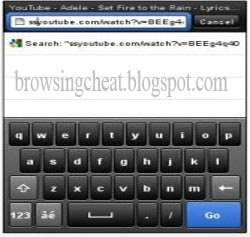
      • Quickly launch another tab in opera mobile browser and type ssyoutube.com in the URL address bar.
      • Then you will get text field of ssyoutube.com website, here you have to paste correctly the URL web address of the YouTube video.

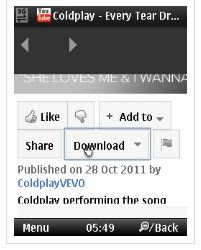
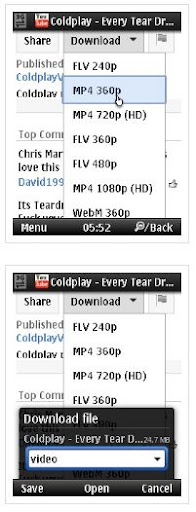
      • Finally, you can now click download to commense download of the selected YouTube video file.
      paste youtube video url address in opera browser

      download youtube video in mobile
      • You can selected an apropiate video file format e.g flv 240, flv480p, mp4 360, mp4 720(HD), web M360p e.t.c and dont forget to set target location where to save the video file after download is over.
      paste youtube video url address in opera browser

      Now you can download thons of youtube videos using the above steps for your Android, Blackberry, Iphone, Windows mobile, Samsung galaxy note and Nokia e.t.c YouTube videos successfully in your mobile phones, iPhone, Android, iPod, etc through above simple tips.