Showing posts with label HUAWEI. Show all posts

Monday, July 1, 2013

HUAWEI ASCEND MATE FULL SMARTPHONE SPECIFICATIONS AND PRICE

HUAWEI ASCEND MATE QUADCORE 6.1 INCH SMARTPHONE SPECIFICATIONS


Huawei is a chinese smartphone manufacturer which caters the vast range of smartphone right from the entry level segment upto high end segment. This smartphone code named Ascend Mate targets mid range price level and is available @ $ 458 / Pounds 340 / Rupees 24900/-. Now lets foray the display specifications of Huawei Ascend Mate, its a 3G smartphone which sports a 6.1 Inch IPS + LCD Capacitive Touch screen with multi touch & Emotion UI. The display of Huawei Ascend Mate brags of Corning Gorilla Glass Protection. Display resolution of this smartphone is 720 x 1280 Pixels, ~241 ppi pixels density & 16 M Colours. Dimensionally Huawei Ascend Mate measures 163.5 x 85.7 x 9.9 mm (6.44 x 3.37 x 0.39 in), it weighs 198 gms (6.98 oz) & there are two colour options to select your smartphone viz; Crystal Black & Pure White. Inside the closet this smartphone packs a Quadcore 1.5 GHz ARM Cortex A9 Processor, Huawei K3V2 Chipset, Vivante GC4000 GPU, 2 GB RAM. Huawei Ascend Mate comes out of the box with Android OS v4.1 (Jelly Bean). Technically this smartphone is ready to run latest games and it will be a pleasant experience for multi taskers. The smartphone holds an 16 GB internal memory & further it also packs a memory card slot that supports upto 32 GB microSD / miroSDHC. Huawei Ascend Mate features on its rear a primary camera of 8 MP with LED Flash light, Auto focus, Geo tagging, HDR, face detection. The snapper is capable of click images of resolution 3264 x 2448 pixels and record videos of resolution 1080P @ 30 fps. The secondary camera of the smartphone is of 1 MP for video chatting that is capable of recording videos of 720P @ 30 fps. On the Data connectivity front this smartphone is loaded with Wifi, Wifi Direct, Wifi HotSpot, DLNA, Bluetooth v4.0, microUSB v2.0, USB Host. Huawei Ascend Mate also has GPS with support for A-GPS. The smartphone has a non-removable Li-ion battery with a gigantic juice of 4050 mAh. The smartphone is available on various websites online like www.amazon.com, www.expansys.com, www.flipkart.com.

HUAWEI ASCEND MATE FULL SPECIFICATIONS AND PRICE
HUAWEI ASCEND MATE


HUAWEI ASCEND MATE FULL SMARTPHONE SPECIFICATIONS:
  • 6.1 INCH IPS + LCD CAPACITIVE TOUCH SCREEN
  • MULTI TOUCH, EMOTION UI
  • CORNING GORILLA GLASS
  • DISPLAY RESOLUTION 720 X 1280 P, ~241 PPI PIXELS DENSITY, 16 M COLOURS
  • ANDROID OS v4.1 (JELLY BEAN)
  • QUADCORE 1.5 GHz ARM CORTEX A9 PROCESSOR
  • HUAWEI K3V2 CHIPSET
  • VIVANTE GC4000 GPU
  • 2 GB RAM
  • 16 GB INTERNAL MEMORY
  • SUPPORT UPTO 32 GB microSD
  • 8 MP PRIMARY CAMERA
  • 1 MP SECONDARY CAMERA
  • LED FLASH LIGHT
  • Wifi (Wifi Direct, Wifi HotSpot), DLNA, BLUETOOTH v4.0
  • 3G, microUSB v2.0, USB HOST
  • GPS (A-GPS)
  • DIMENSIONS 163.5 x 85.7 x 9.9 MM (6.44 x 3.37 x 0.39 IN)
  • WEIGHT 198 GMS (6.98 OZ)
  • COLOUR OPTIONS CRYSTAL BLACK & PURE WHITE
  • 4050 mAh NON REMOVABLE Li-ion BATTERY
DISCLAIMER: THE DETAILS ON THIS BLOG MAY NOT BE 100 % ACCURATE. FOR ANY DISCREPANCIES KINDLY LEAVE A NOTE BELOW. THANK YOU FOR READING.

Tuesday, June 18, 2013

HUAWEI ASCEND P6 FULL SMARTPHONE SPECIFICATIONS REVEALED

HUAWEI ASCEND P6 QUADCORE 4.7 INCH  SMARTPHONE ANNOUNCED


Chinese Smartphone Giant Huawei has revealed yet another Phablet in its Flagship Ascend series codenamed Ascend P6 will be competing with the likes of Apple iPhone 5, Samsung Galaxy S4 & HTC One M7


Huawei's Latest 3G Dual Sim Smartphone with Dual Standby is a combination of smart looks & great performance. Looking at the specifications this smartphone will give a tough competition to some big smartphone brands. Huawei Ascend P6 sports a 4.7 Inch LCD Capacitive Touch Screen with Multi Touch & it also features Emotion UI 1.6. The Display resolution of the smartphone is 720 x 1280 Pixels, ~312 ppi pixels density, 16 M colours. The Display is protected by Corning Gorilla Glass 2 & on the sounds front Huawei Ascend P6 boast of Dolby Digital Plus sound enhancement. This smartphone is very slim (a thinnest android to date), dimensionally it measures 132.7 x 65.5 x 6.2 mm ( 5.22 x 2.58 x 0.24 in), it weighs mere 120 gms ( 4.23 oz), which is really very light & has got 3 Colour options to select from Black, White & Pink. On the display front this smartphone scores well, now lets check what it has got within. Under the hood Huawei Ascend P6 holds a Quadcore 1.5 GHz Processor, Huawei K3V2 Chipset, Vivante GC4000 GPU, 2 GB RAM. The smartphone comes out of the box with Android OS v4.2.2 (Jelly Bean). Technically this smartphone is capable of running all the latest games & will be a pleasure to use for multi tasking. The internal memory of Huawei Ascend P6 is of 8 GB & has a support upto 32 GB microSD. On its rear it packs a 8 MP BSI Camera with LED Flash light, Auto Focus, Geo Tagging, HDR, Face & Smile Detection. The snapper can click images of resolution 3264 x 2448 Pixels & can record videos of 1080 P @ 30 fps. The BSI sensors helps in enhacing picture clearity in dim lights. The secondary camera will give a brilliant video chatting experience as it is of 5 MP which is capable of recording videos of 720 P. The smartphone also features Wifi, Wifi Direct, Wifi HotSpot, DLNA, Bluetooth v3.0, NFC, microUSB 2.0, USB on-the-go, GPS with support for A-GPS, GLONASS. It packs a power bank of 2000 mAh.

HUAWEI ASCEND P6 FULL SPECIFICATIONS
HUAWEI ASCEND P6


HUAWEI ASCEND P6 FULL SPECIFICATIONS:
  • 4.7 INCH LCD CAPACITIVE TOUCH SCREEN
  • MULTI TOUCH, EMOTIONS UI 1.6
  • DISPLAY RESOLUTION 720 X 1280 P, ~312 PPI PIXELS DENSITY, 16 M COLOURS
  • CORNING GORILLA GLASS 2
  • DOLBY DIGITAL PLUS SOUND ENHANCEMENT
  • ANDROID OS v4.2.2 (JELLY BEAN)
  • QUADCORE 1.5 GHz PROCESSOR
  • HUAWEI K3V2 CHIPSET
  • VIVANTE GC4000 GPU
  • 2 GB RAM
  • 8 GB INTERNAL MEMORY
  • SUPPORT UPTO 32 GB microSD
  • 8 MP BSI PRIMARY CAMERA
  • 5 MP SECONDARY CAMERA
  • LED FLASH LIGHT
  • Wifi (Wifi Direct, Wifi HotSpot), DLNA, BLUETOOTH v3.0, NFC, microUSB (USB on-the-go)
  • 3G, GPS (A-GPS), GLONASS
  • DIMENSIONS 132.7 x 65.5 x 6.2 MM ( 5.22 x 2.58 x 0.24 IN)
  • WEIGHT 120 GMS (4.23 OZ)
  • COLOUR OPTIONS BLACK, WHITE, PINK
  • 2000 mAh Li-Po BATTERY
DISCLAIMER: THE DETAILS ON THIS BLOG MAY NOT BE 100 % ACCURATE. FOR ANY DISCREPANCIES KINDLY LEAVE A NOTE BELOW. THANK YOU FOR READING.

Monday, May 13, 2013

USE YOUR ANDROID AS MODEM TO BROWSE FREE

Knowing that you can actually exceed and exhaust the ways you can connect your mobile phone to the internet make it wonderfully awesome and alluring. And its also a letdown if you cannot employ all the tactics to do this. Today, I just found out a new way on how you can connect your android phone as a modem. All through this blog i have posted ways you can connect various mobile devices to the internet and how they can serve as a modem to the user

You can check out the following links to learn More
How to Use your Nokia As Modem
How to use your iPHonE As a 3G ModemHow To Use Your Blackberry Phone as a Modem

All you need to tether your internet connection on an Android device is as simple as getting yourself the PDAnet app and you can find it available at Google play store.

I've tested this on a friends android and it worked fine and I was able to connect without out any hitch. In fact after a successful connection, I decided to share it with you guys on my blog. I never knew PDAnet was that great. The only thing is that you are subjected to a certain trail period where the software gives you every functions of a full version for some days. After the trial period, connections via https(secured connections) are disabled. by that you are are unable to login in to sites with secured connections. For example you wont be able to access your Facebook account because it is on a secured connection. You can check here for more details about the full version


You can download the full version of PDAnet for FREE!!!!

HOW TO CONNECT YOUR ANDROID AS A MODEM

Instructions:Let me assume you just downloaded the app from the link I provided above for your PC and install it in a hurry so we can get started. And please spare me the question of how to configure it, because neither you nor I will be needing it for this tutorial. Once your android device is configured then you dont have to bug your nerves.

Okay now download PDAnet for your android phone and install it too and enable USB Tether.

HOW TO CONFIGURE YOUR ANDROID

Go menu or Application Go to settings Go wireless networks Go to name access points In the APN screen that appears, press Menu and select New APN Only fill in the following fields: - Name: a name of your choice - APN: Set the name of the access point -
Username (if required in your operator) - Password (if required in your operator) -
Identification type choose PAP or CHAP -
APN type select Internet Save all this by pressing Menu and Save

Secondly, connect your android phone to your PC via USB cable instantly and that's all

STILL CANT CONNECT YOUR ANDROID AS MODEM?


if you still cant connect your android phone as a modem using the above steps then you can simply right click the PDAnet tray on your system task bar and click Connect to the Internet.


After a sucessful connection you can Make use of airtel's BIS (blackberry Internet Service) Data Plan on your android to browse free.... SOUNDS KOOL RIGHT? PDAnet is also available for other OS such as Palm OS, Blackberry, iOS and Windows Phone and can equally be used on Mac OSX.

Have Fun…

Saturday, May 4, 2013

10 STEPS TO TROUBLESHOOT YOUR ZTE OR HUAWEI MODEM

Due to the large number of complains I get on countless occasion from different modem users, I have decided to make this post that can help you fix some bug and troubleshoot your modem. There are several reasons why you re unable to connect your modem to your PC to access the internet. some many have complained of "device disconnected" or device not available when they try to connect their modem to the internet. Sometimes SIM is not detected or SIM is said to be invalid. And sometimes you get the message on modem installation that says "Device not successfully install" or you get device "driver not found".

Now the One million dollar question is; how are you to go about this? how do yo get alll these solve to get your modem in a working condition.Should I get a new modem in this case?

Now before You think of getting a new modem, try the following steps carefully and make sure you hid to every instruction.

[1] 1ST MAKE SURE THE SIM IS PROPERLY INSERTED


You should probably see direction for use on your modem pack or right on the modem that shows you the correct way to insert SIM into your modem

[2] MAKE SURE YOUR MODEM IS UNLOCKED OR YOU'RE USING THE RIGHT SIM

With the advent of Customized Modem from different network provider, you're are sure to get an error message that shows SIM is not accepted when you insert SIM from another network provider. You can get passed this by simply getting your Modem unlocked so it can accept SIM from other network provider.

[3] MAKE SURE U USE THE APPROPRIATE APN SETTINGS FOR YOUR HUAWEI OR ZTE DEVICE


Make sure you create a profile on your modem bearing the right APN settings for the right SIM inserted. You can create several profile as much as you please.
APN Settings for GloAPN: gloflat
username: web (or leave blank) passord: web (or leave blank) access number: *99#

APN Settings for AirtelAPN: internet.ng.airtel.com
username: web (or leave blank) passord: web (or leave blank) access number: *99# (similar to the settings for BIS on PC )

APN Settings for MTNAPN:web.gprs.mtnnigeria.net
username: web (or leave blank) passord: web (or leave blank) access number: *99#

APN Settings for EtisalatAPN: etisalat
username: web (or leave blank) passord: web (or leave blank) access number: *99#

[4] TRY REINSTALLING THE SOFTWARE OR DASHBOARD IN SAFE MODE

You can kindly unistall the modem software (dashboard) and try re-installing it in a Safe Mode (...I guess you're already know how to do this ).It's as simple as holding or taping F8 on your PC before window loads... just as soon as you press the power button or press F1 on our desktop and type Safe mode to search for more info)

[5] MAKE SURE YOUR FIREWALL IS NOT BLOCKING YOUR MODEM SOFTWARE TO CONNECT DIRECTLY TO THE INTERNET

You should also make sure that your firewall is not preventing internet connect from your device. You can do a proper check and try connecting again.

[6] MAKE SURE YOU HAVE A DATA PLAN THAT IS ACTIVE FROM EITHER GLO, ETISALAT, MTN, OR AIRTEL E.T.C

Getting a data plan of your choice should not be your problem, 'cus all through this blog, I have littered and exhausted i know about available data plan on all network.
I guess you should Check:
  • Glo Recent Data Plan
  • Aitel BIs Data Plan On PC
  • Etisalat Data Plan for BIS
  • Mtn New Data Plan With Extensive Validity
  • [7] THEN YOU CAN TRY OTHER SIMS TO CHECK IF IT IS SIM PROBLEM. NOT ALL SIMS CAN BROWSE

    Yes, Its true, not all SIM can browse no matter what you do to that SIM. All SIMs are made differently

    [8] CHECK IF MORE THAN ONE MODEM IS INSTALLED ON YOUR SYSTEM AND DELETE THE ONES YOU DON'T NEED.

    It has happened to me. I installed several modems on my PC. When I tried connecting it says "device disconnected", when I uninstalled all the modems, I installed only one and it started working. I noticed also that, it also work on USB ports and doesn't work on the other. But after the above step, it all got solved.You can uninstalled them from your control panel through uninstallation.

    [9] YOU CAN RESTART YOUR SYSTEM AND TRY CONNECTING ONCE AGAIN.


    If you've done the above steps, then you can quickly do a restart so as to beginning connection on a fresh note

    [10] FINALLY YOU CAN EITHER FLASH AND RE-INSTALL THE MODEM FIRMWARE OR DO AN UPDATE.

    You should do this if only the above mentioned steps proved abortive. This very steps helps you to flash, re-install and update to your modem's firmware and Dashbord. This is the final antidote to any stubborn modem.

    You can click the like button if deem this Post helpful

    THANKS

    Monday, April 29, 2013

    MUST READ: UNLOCK HUAWEI AND ZTE MODEM AND INSTALL NEW FIRMWARES AND DASHBOARD

    It feels so bad knowing that your modem cannot accept any SIM inserted into it. This normally happens when you exhaust the given number of unlock attempt (normally 10 attempts). In my case I exhausted all the 10 unlock attempt allotted to my Huawei E173 modem. I “Googled” the living daylight out of my computer finding a reasonable solution but I got frustrated the more.

    Things finally began to make head way the moment I stumbled on this two great software that helped me in flashing and re-installing my modem firmware and reset my modem counter. But it didn’t stop there. Then I tried other tricks which I am going to explain right away in this tutorial section. This trick Unlocks all

    Huawei

    [ B970, D100 E122, E150, E153, E1550, E1552, E1553, E1556, E156, E156, E158, E160, E161, E1612, E169, E1690, E1692, E170, E172, E173, E1731, E1732, E177, E1750, E1752, E1756, E176, E1762, E180, E1820, E2010, E219, E220, E226, E230, E270, E272, E367, E372, E510, E583c, E5830, E5832, E5832s, E585, E612, E618, E620, E630, E660, E800, E870, E960, EC121, EC122, EC1260, EC1261, EC1262, EC150, EC152, EC168, EC226, EC321, EC325, EM770, ETS2205, ETS2208, ETS2222, ETS2258, K3520, K3565, K3715, K3765, K4505, R201, UMG169, UMG181, ]

    and

    Zte

    [ MF100, MF102, MF110, MF112, MF170, MF180, MF190, MF30, MF332, MF612, MF616, MF620, MF622, MF626, MF627, MF628, MF631, MF632, MF633, MF635, MF636, MF637, MF638, MF645, MF656, MF662, MF663, MF668, K3520-Z, K3565-Z, K4505-Z, ] .

    STEP 1

    First before we get started, download this software I have with packaged here. It’s a zip file Unzip the zip file with any unzipper (you can check out for popular ones like win winrar, available for 36 and 64 bit users) or any zip software to extract the file content


    STEP 2

    - run the .exe file inside the zip folder,

    STEP 3

    - Click on the Refresh button to automatically detect and unlock your Huawei modem. Don’t forget to check the AUTO CONNECTION in the connection mode area. You Can check out the photo below to see exactly what I mean

    STEP 4

    - Take note of the second arrow labeled “2” to make sure that Auto-Calc Code and Auto-Unlock Modem are checked too

    STEP 5

    - Next you should click READ MDM DATA button

    STEP 6

    - You can Now click the UNLOCK button to unlock your modem automatically. Clicking the Unlock button also helps you to reset the unlock attempt counter back to it default state (0/10 unlock attempt. Varieties of

    But Hey! Wait!!!. Not so fast.

    One more action is need to flash the modem Without wasting time click on Calculate button on the left side of the software to generate the flash code. Sure you’re gonne need it later.

    Related Post:

    Tips on How to Unlock ZTE or huawei Modems Easily

    1. Follow the below steps if you wish Upgrade your Modem Firmware
    2. First, we are going to download the right software to help us to this without a hitch. Please note You must download the right firmware for your modem or else it won’t work. You can download it from their official website but I prefer and recommend dc- files.com
    3. - Select Huawei or whatever model your modem is and click the little modem icon by the side

    4. Next page you’ll see will let you pick from a dropdown list the model of your modem. So select your modem model and click the same modem icon next to it. In this case we are selecting Huawei E156 for this unlocking tutorial.
    5. Now, its time to download and update our Firmware and Dashboard. You can see the image below to see options available

    6. Now to update the firmware, just simply unzip the firmware update you downloaded and install the “.exe file.” Like you would do to any windows program.
    7. Accept the agreement and proceed.
    8. Wait while the wizard searches for your modem. Just calm as this should only take your few seconds
    9. On the next page, simply hit the Next button to begin the upgrade of your Huawei E156 firmware Data Card
    10. Now listen up carefully. You just successfully reached the flashing stage of your Huawei Modem. Kindly make yourself comfortable while you wait for the whole process. This takes up to about 30mins or less.
    11. You can do some coffee while you stay chilling.


    - Don’t hit the start button yet,

    .
  • Do take note of the warning messages that appears on the screen before proceeding to flash your modem. You may be prompted to enter your modem flash code if necessary.

    Remember

    I told you earlier you would need it as we proceed. Well this normally occurs when your new firmware version differs or is not compatible with the current one you’re about to install on your device.
  • Enter the flash code as shown in the image above. Flashing should start automatically, and it normally takes less than 10-15 minutes and allow the wizard to update your modem firmware.

  • At this point, you should see a message that says Update Success!.
    The message displays your modem new FIRMWARE version and IMEI respectively. See the image below

  • You can now smile to yourself for a successful hitch frees Modem Firmware Upgrade!
  • How to install a new Zte or Huawei Dashboard on your Modem

    After a successful firmware upgrade, you may be so eager to start trying out SIM cards from the all different network provider you know. Well let me not laugh at you yet (although I just did). You may still get that frustrating message you get when you insert the different network SIM. The reason is beacause , the default Dashboard is programmed to pop out an error message and disable sim detection when a different network sim is entered.
    Not to worry I will show you everything you need to know to stop seeing this message.

    The Hard Job Here [sorry just kidding] is to Update our Dashboard
    1. Simply unzip the Dashboard file I told you to download before. A list of them include Huawei, Zte, Novatel, Sierra Wireless, Samsung, BandRich, Alcatel, alfa, and Vodafone. So just select the modem type you wish to unlock
    2. - Unzip the file and run the executable file
    3. - Accept the agreement and continue
    4. - Again, the software should search for your device
    5. -Hit the Next button as before and the procedure is very much similar to the firmware upgrade you did earlier.

      1. Now check this out, it more like a child's play unlocking Modem and re-installing /upgrading the firmware, Is that not?

        Now, just know that this is the only way for now that you can use to recover your 10 wrongly entered unlock attempts. You can save or bookmark this page to go over it more often for a step by step guide on how to unlock and update modem dashboard and firmware on HUAWEI and ZTE.

      Just help me do a click on like button if you like this tutorial. You can drop comments if it works. in that way I get encouraged.THankS!!!

    Saturday, April 27, 2013

    THE EASIEST WAY TO USE YOUR iPHONE AS A 3G MODEM

    The use of Iphone to surf the web brings a unique user web browsing experience and is for sure very cool for anyone maximize full use of its internet capability.

    Althrough this blog I have taken my time to explain ways to Connect mobile phones with PC so as to access the internet to browse free. Infact one of the foremost reasons why I initiated this blog was to showcase all the experiments I have made in trying to connect mobile devices and PCs to surf the net at a little or no cost price.

    For many Iphone users who want to do more than syncing files from their Mobile to PC with their IPhone must have at one point or the other wondered in their wildest imagination how to use it(iPhone) also as a Modem.

    Using a phone as a modem is not a new technology to any tech savvy individual. But taking the advantage of the 3G enabled capability found in an Iphone so as to use it as a modem is what makes this post a little bit different.

    In connecting your Iphone to your MAC/PC computer as a modem, "Tethering" is the word you should get familiar with.

    this means you're able to your connect Iphone directly to your PC with a USB cable or Wireless connectivity which involves the use of bluetooth without any Emulator or third party software ( for example; like the use of NOKIA or SAMSUNG PC SUITE or whatever) the same way you will do with your Zte or Huawei Modem so as to make use of your network's 3G data service.
    RELATED POSTS:

    STEPS TO USE YOUR IPHONE AS A 3G MODEM

    1. Update Your Iphone OS
    First, kindly update your Iphone OS. You can check out the post I've created on How to update Iphone OS here

    2. Tether Your Internet Connection
    Go to iPhone's menu, navigate to settings tap General > Network > Internet Tethering. Slide the Internet Tethering switch to On.
  • 3 Plug in your USB
    To use your iPhone via USB to connect as a modem, first connect your iPhone to your computer. If you're using Microsoft Windows OS, then dash to your computer's Network services settings from Control Panel and choose iPhone. Alternatively, Mac users (must be running Mac OS X 10.5.7 or later), you would see a quick pop-up on your screen with the message "A new network interface has been detected". left click on Network Preferences, then enter configuration settings of your network provider for iPhone, then click on Apply to save settings.

  • Alternatively

    1. Connect wireless via Bluetooth
      Still in the same manner, head over to your iPhone's settings menu, tap General > and switch on Bluetooth connection. But you must first pair and connect the iPhone to your computer.
    2. Browse the Web
      Now you will see that the Bluetooth Icon now carries the message "Internet Tethering" at the top of your iPhone. Now you are good to go 'cus you just succeeded in connecting your iPhone as a Modem.
    3. But Wait !!!

      Not so Fast, Do get a data plan of your choice to surf with and remember not to turn of Internet tethering until you are done with your browsing section on Ensure you have a large data quota to work with, as tethering uses much more data than browsing the Web on your iPhone does. If you regularly use tethering, we suggest a data allowance of at least 1GB per month.

    Saturday, March 9, 2013

    UNLOCK THAT STUBBORN ZTE AND HUAWEI MODEM HERE

    follow this guide line to unlock your Huawei Modem Easily

    I know you must have been frustrated after several attempts to unlock your new Huawei modem probably because generating the unlock code using IMEI doesn’t seem to work for you like it used to. Well, the newer versions of Huawei modems like E303 and E173 doesn’t seem to respond to that old trick any more. It also doesn’t show you where to put the unlock code for your E173 modem when you insert SIM from other network provider. I also had the same experience and made several attempts too, but all to no avail. Suddenly, I had a brain wave and decided to try the popular DC-unlocker .And guess what? Voila!!! it finally got unlocked.

    You can Download the latest version here. Follow this easy tutorial on how to unlock stubborn Huawei and Zte to enjoy a wonderful browsing experience with any network of your choice.

    This tutorial will help you unlock the following model of modem: ZTE MF190(Telma Madagascar), ZTE MF633, Huawei E177 (Zain Sudan,Huawei E153 (MTN Sudan),Huawei E173 (Safaricom Kenya), Huawei E303 (Sudani Sudan), Huawei E173 (Airtel Nigeria), Huawei E3231 HiLink, Huawei SoftBank 005HW, Huawei SoftBank AP01HW,Huwei E1750, Huawei E153u1 (Etisalat Egypt), Huawei E153 (Philippines SmartBro), ZTE MF627 (Philippines)

    The first you should know is that you need some amount of credit on your DC- unlocker to unlock your device. Don’t be carried away by that crappy stuff regarded as a cracked version of DC-unlocker. You must buy sufficient credit before you can unlock any stubborn modem. The credit varies depending on the device you want to unlock. You can check out the price list from this linkFor Huawei E303, it’s only 4 credits while E173 requires 7 credits.

    Related Post:

    Step 1:

    Now, let me assume you just got some sufficient credit to your account. Click here - Connect your modem and run the software. Be sure you close the default dashboard software for your modem.
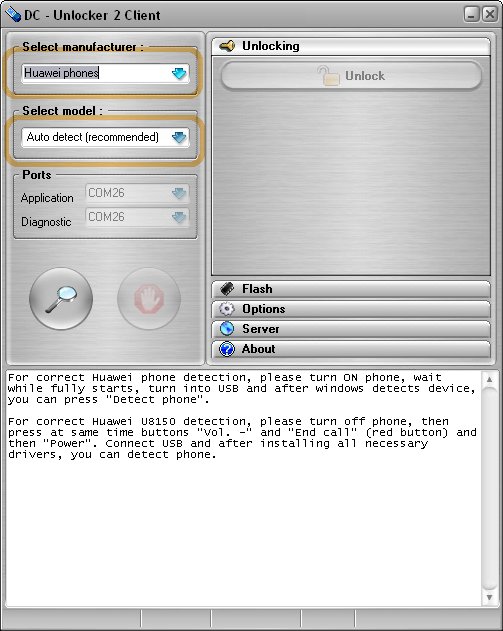
      - Quickly Select your device manufacturer (e.g Huawei or Zte) from the drop-down menu and find your device model from the ‘select model’ section
      - Or you can click on the magnifying glass icon to enable the DC-unlocker software to automatically search and detect your device.
      - It normally takes few second for the software to detect your modem automatically. See the photo below to learn more
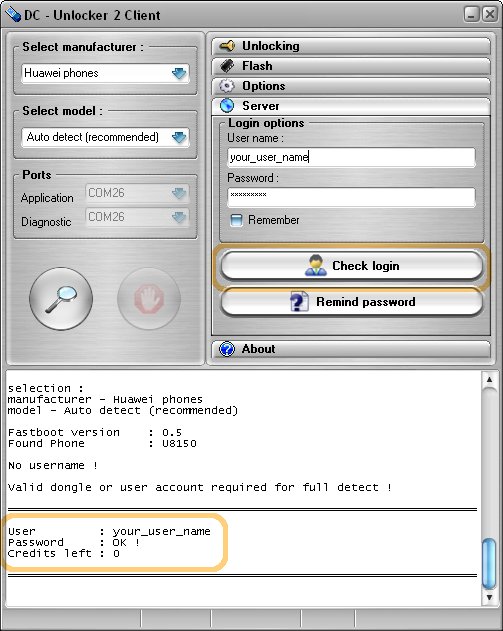
    Step 2:Now switch over to the right pane of the unlocker and click on Server and fill out the “login options” text box. Fill it with your username and password, click on check login. Dc-unlocker user name and password is created upon purchase of sufficient credit. You can do that with your PayPal account or via credit card

    Step3:
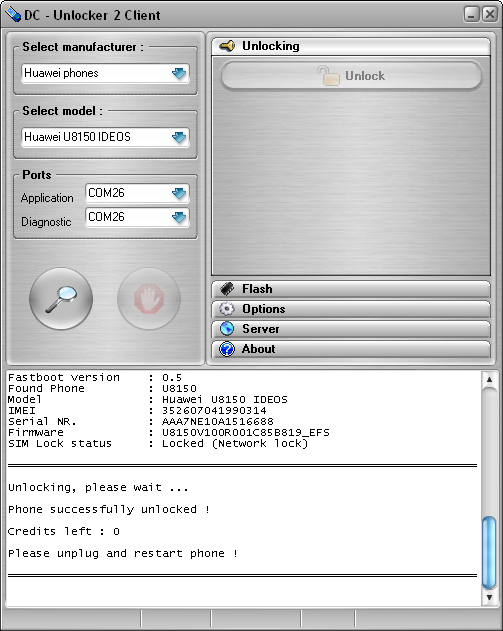
    Hit the “Do job” button and enjoy unrestricted SIM usage on your Zte and Huawei modem You can check out the photo below to see a proof that your stubborn Huawei modem has been unlocked successfully (It works for Zte also)
    Note: You much have a sufficient balance or credit before you can successfully unlock your modem You can just drop a ‘thank you’ comment, after unlocking your modem with these 3 easy steps above. You can check this link to see list of D-unlocker distributors in your country or near your locality.For those of you who don’t have a PayPal account, you can contact me (toneroadah4real @yahoo.com) and I will carry out the purchase for you, else you can drop your testimony via comment box below

    Tuesday, February 19, 2013

    HOW TO INSTALL GLO BOLT MODEM ON PC

    Modem InstallationFIRST TIME ACTIVATION

    I guess you just bought a new Glo modem and you are also ready with a Glo prepaid SIM also Insert the GLO SIM in the SIM slot inside the modem, and then make a direct connection of the modem to your device(desktop,laptop e.t.c).

    Just take a few seconds (lets say 0-30 seconds)to wait and allow the "folder-like" dialogue box to pop up on your device screen or better still dash to “My Computer” (shortcut key Win + E) and double click the glo dongle icon you see Click on the “RUN.AUTO.EXE” in the folder to install the modem on the PC and stick to instructions on the wizard dialogue boxes.

    • you see a pop-up that the device is fully installed and ready to use, then switch over to double-click on the Glo icon on your desktop
    • Watch out for the Glo network signal icon to show up right at the left bottom corner of the Glo software interface/Graphic User Interface (GUI)
    • Click on the “CALL” icon on the GUI, dial/flash any number of your choice to immediately activate your Glo prepaid SIM
    • Click on the “USSD/SELF CARE” icon on the GUI, to input the recharge card PIN ( Do this without "#" or "*") one at a time in the “INPUT RECHARGE CODE” area and left click on the “ACTIVATE/RECHARGE” button.
    • Just Repeat this process until you recharge the account with the corresponding amount of the package of your choice. Close the box when you are done.
    • Click on the “TEXT” icon on the GUI; select the first envelope-like icon with a blue label.
    • On “SEND TO” field, type "127" and then type the appropriate plan code (10 or 11 or 12 etc.) in the body. Click “SEND” button
    • Afer a while you will receive an SMS that shows that your subscription was successful
    • Click on the "VIEW" button to grab full details of your subscribed plan.
    • Click on the “CONNECT” icon on the “TASK BAR”
    • Ensure the “PROFILE NAME” is set at “GLO 3G PLUS (PREPAID)”
    • Click on the “CONNECT” button, once the green and the red arrows come up, you can then open your internet browser and "RULE YOUR WOLRD”!,


    RELATED POST: HOW TO UNLOCK YOUR GLO BOLT MODEM

    TO CHECK YOUR GLO SUSCRIPTION STATUS
    Click on the “TEXT” icon on the Glo modem Software; select the first envelope-like icon with a blue label.
    In the “SEND TO” field, type 127 and then type “INFO” in the body.
    Click on the “SEND” button and it will display your subscription status.